
Clipchamp Review
VideoFreemiumMicrosoft's free browser video editor with AI subtitles, auto captions, and 4K exports for creators and beginners.
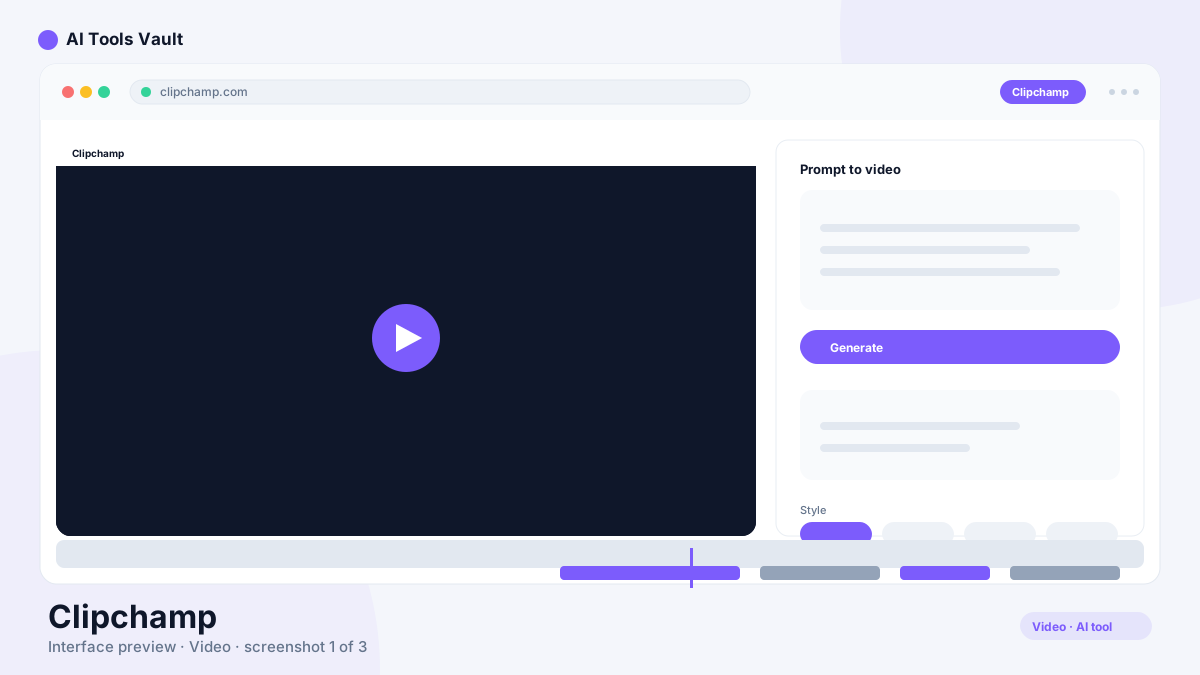
What Is Clipchamp?
It's Microsoft's free browser-based video editor, now built into Windows 11. It gives you a full timeline editor in your web browser, so you can cut, trim, and arrange clips without installing any desktop software.
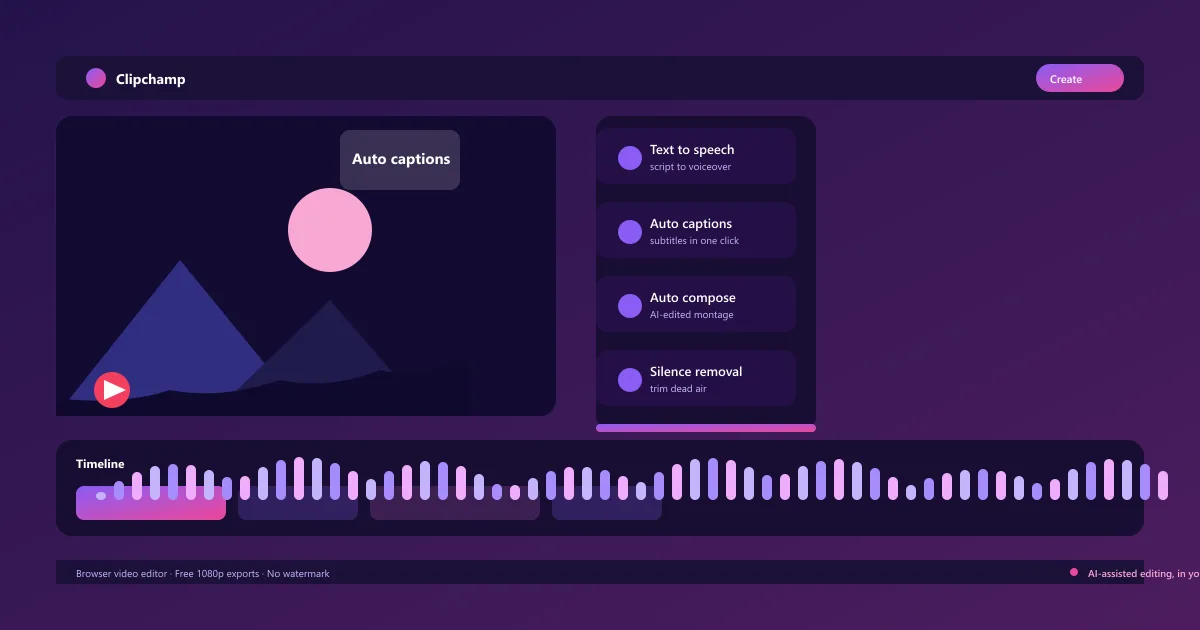
The editor pairs a familiar drag-and-drop timeline with a growing set of AI features: automatic text-to-speech voiceovers, auto captions and subtitles, an AI auto compose tool, and one-click silence removal. Everything renders in the browser and exports straight to MP4.
Microsoft acquired the app in 2021 after it launched in 2013, and today it ships with Windows 11 as the default editor. The free tier is genuinely free — unlimited 1080p exports with no watermark — which makes it the easiest starting point for beginners.
Because it lives in the browser, the same project works across Windows, Mac, and ChromeOS. You can start a video on one device and keep editing it on another.
Beginners reach for it because there is nothing to install; creators reach for it because the AI assist features remove the most tedious parts of editing. Teams that already pay for Microsoft 365 get the premium features without an extra subscription.
It's free to start, so there is no barrier to testing it on your next video.
Clipchamp AI Text to Speech
The AI text to speech tool turns a script into a narration track in seconds. Type or paste your script, pick a voice, and the editor generates a voiceover that lands on the timeline ready to edit.
There are dozens of voices across languages, with male and female options and adjustable speed and pitch. You can regenerate any line until it sounds right, which makes it easy to fix a mispronounced word without re-recording.
Because the voiceover is generated as a timeline clip, you can trim it, split it, or reorder it exactly like any other asset.
It's the fastest way to add narration to explainer videos, tutorials, and social clips without booking a microphone.
- Type a script, get a natural AI voiceover
- Dozens of voices across multiple languages
- Adjustable speed and pitch
- Edits as a normal timeline clip
Clipchamp Auto Captions & Subtitles
Auto captions generate subtitles from your video's audio automatically. Click once, and the app transcribes the speech and places word-by-word captions on the timeline.
The captions are fully editable: change any word, adjust timing, and restyle the caption text to match your brand. You can move a caption so it never covers a face, and export with the style you want.
For social clips, captions are no longer optional — most viewers watch with sound off. Auto captions turn a finished edit into an accessible, scroll-stopping version in one click.
They also double as a rough transcript, which makes reviewing dialogue and fixing the flow of a video much faster.
- One-click transcription of any audio track
- Edit any word and fix timing errors
- Custom caption styles and colors
- Export captions burned into the video
Clipchamp AI Auto Compose
AI auto compose builds an edit from your raw clips automatically. Throw in your footage, and the app arranges the clips, adds transitions, and syncs them to the beat of a music track.
It's a starting point rather than a finished edit: the tool analyzes your clips, picks the strongest moments, and lays down a rough cut you can refine. You keep full control over the final sequence.
For event recaps, holiday montages, and social highlights, auto compose turns a folder of clips into a shareable video in minutes.
Generated edits use templates that stay consistent, so you can produce a similar look across multiple videos without rebuilding the timeline each time.
- Automatic clip arrangement and trimming
- Music-synced transitions
- Template-based consistent edits
- Refine the rough cut with full control
Clipchamp Silence Removal
Silence removal finds the pauses in your audio track and deletes them, tightening the pacing of talking-head videos and podcasts.
The detection is smart enough to keep natural rhythm — it removes long dead air while preserving short pauses between sentences, so dialogue doesn't sound rushed.
You can preview each removed segment and restore anything the detector was too aggressive about.
It's a one-click way to cut 10-20% off a talking video, which compounds into serious time savings across a whole series.
- One-click removal of long pauses
- Keeps natural sentence rhythm
- Preview and restore removed segments
- Great for talking-head videos and podcasts
Clipchamp Screen & Webcam Recorder
The built-in recorder captures your screen, webcam, or both at once — no separate software needed.
You can record your screen for tutorials and demos, add a webcam overlay for a personal touch, and capture system and microphone audio in the same take.
Recordings drop straight onto the timeline as a new clip, ready for captions, silence removal, or an AI text to speech narration.
It closes the loop between recording and editing, which is why so many educators and small teams use the app as their full pipeline.
- Screen, webcam, or picture-in-picture recording
- System and mic audio captured together
- Recordings land directly on the timeline
- No separate screen recorder needed
Clipchamp Pricing — Free vs Premium Plans
The free plan is the real deal: unlimited 1080p exports with no watermark, the full timeline editor, AI subtitles and captions, and the stock asset library. It's the best free video editor for most people.
Premium unlocks 4K UHD exports, the full premium stock library, the brand kit for consistent colors, fonts, and logos, and cloud project backup. You get it bundled with Microsoft 365 from around $6.99/month billed annually, or as a standalone Premium add-on.
If you already pay for Microsoft 365, the upgrade costs nothing extra. If you don't, the free tier covers most casual editing and social work without spending a cent.
Compare Plans & Pricing
Free (1080p exports, no watermark); premium features included with Microsoft 365 (from $6.99/mo annual); standalone Premium add-on
Free
Start editing right in the browser.
- 1080p exports
- No watermark
- AI subtitles & captions
- Stock asset library
Microsoft 365
Annual Microsoft 365 subscription unlocks premium Clipchamp.
- 4K UHD exports
- Premium stock assets
- Brand kit
- OneDrive backup
Clipchamp vs CapCut
CapCut is ByteDance's free video editor, best known for trendy effects, viral templates, and a huge mobile user base. It's beloved by short-form creators who want one-tap filters and effects.
This tool leans the other way: a full browser-based timeline with AI assistance like text to speech, auto captions, and auto compose. It's more capable for structured, long-form editing and lives entirely in the browser with no download.
Choose CapCut if you live on short-form effects and mobile editing; choose this app if you want a complete editing workflow with AI narration and captions, especially on Windows 11.
Clipchamp vs Premiere Pro
Adobe Premiere Pro is the industry standard for professional editors — a powerful desktop NLE with deep color grading, motion graphics, and a large plugin ecosystem. It has a steep learning curve and a subscription price to match.
This app is the opposite end of the spectrum: free, browser-based, and approachable. It won't replace Premiere Pro for broadcast work, but it handles the vast majority of everyday editing tasks that most people need.
Teams often combine both: Premiere Pro for polished client work, this editor for quick social cutdowns, internal videos, and anything that needs to ship fast without a render farm.
Pros and Cons
Real-world use reveals a clearer picture of Clipchamp: capable, with a few rough edges.
If your videos live on social media or you're starting out, the free tier is hard to beat — especially with 4K and premium assets already included in Microsoft 365.
Try it on your next project: if the browser workflow and AI captions feel natural, it will save you real time. If you need pro color grading and motion graphics, a desktop NLE may suit you better.
Pros
- Free with no watermark at 1080p
- Built into Windows 11
- AI auto subtitles and voiceover
- Simple drag-and-drop editor
Cons
- 4K export needs premium
- Advanced tools are limited
- Cloud projects require OneDrive
Best For
Recommended use cases and scenarios where Clipchamp shines.
Frequently Asked Questions
Common questions about Clipchamp, answered.
What is Clipchamp?
Clipchamp is Microsoft's free browser-based video editor, built into Windows 11. It offers a full timeline editor with AI features like text to speech, auto captions, auto compose, and silence removal, plus free 1080p exports with no watermark.
Is Clipchamp free?
Yes. The free plan includes unlimited 1080p exports with no watermark, AI subtitles and captions, and the stock library. Premium features like 4K exports are included with Microsoft 365 or a standalone Premium add-on.
Does Clipchamp have AI text to speech?
Yes. You can type a script and generate a natural AI voiceover in the browser, with dozens of voices, adjustable speed and pitch, and full timeline editing after generation.
Does Clipchamp add watermarks?
No. Free exports up to 1080p HD have no watermark. 4K UHD exports require a Premium plan, but there is never a watermark on any export.
Is Clipchamp good for beginners?
Yes, it's one of the most beginner-friendly editors available. There's nothing to install, the free tier is genuinely useful, and the AI tools handle the most tedious parts of editing automatically.
Reviews & Ratings
Loading reviews...
Explore More AI Video Tools
Browse the full AI Tools Vault directory to compare Clipchamp with every AI video tool, or line up your shortlist side by side.
Similar Tools
More Video tools you might like

Loom AI
Async screen recording with built-in AI that writes titles, summaries, chapters, and action items from every recording.

CapCut
CapCut is ByteDance's free AI-powered video editor for short-form content, with auto captions, background removal, and a huge template library for TikTok and Reels.

Guides & Articles about Clipchamp
Read our detailed reviews and comparisons covering Clipchamp
 Comparisons
Best AI Video Editors in 2026: CapCut vs DaVinci Resolve vs Filmora
CapCut, DaVinci Resolve and Filmora are the three AI video editors people actually use in 2026. We compare pricing, AI features, learning curves and which editor fits which workflow.
 Sam Carter
 Guides & How-To
Best AI Video Upscaling Tools: Topaz Labs and Alternatives
AI video upscaling in 2026: Topaz Video AI leads for dedicated upscaling, while DaVinci Resolve and Premiere Pro add AI enhancement inside the edit. Compare pricing, quality and hardware needs.
 Alex Rivera