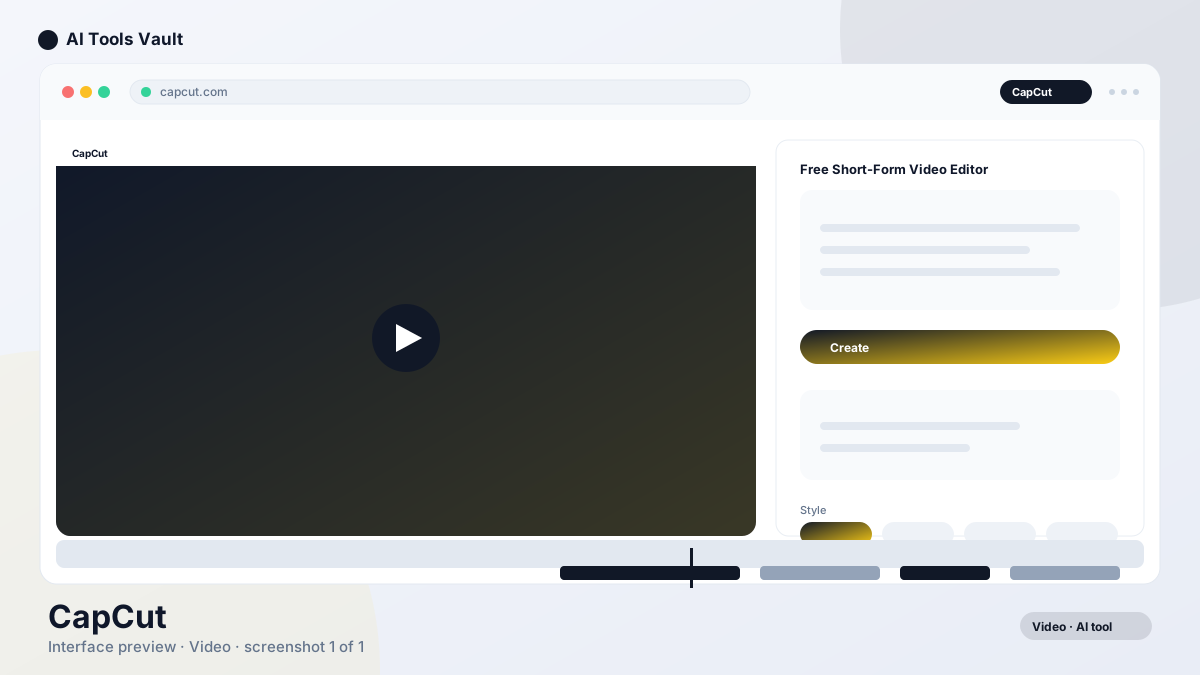
CapCut is ByteDance's free AI-powered video editor for short-form content, with auto captions, background removal, and a huge template library for TikTok and Reels.
This tool is a free AI-powered video editor built by ByteDance, the company behind TikTok. It is the default editor for short-form creators, pairing a beginner-friendly timeline with one-tap AI tools like auto captions, background removal, and automatic beat-synced templates.
The toolset is unusually generous for a free product: no watermark on standard exports, desktop and mobile apps, and a template library that updates with every TikTok trend. For creators who produce social media content regularly, the combination of free access and AI features makes it one of the most practical editors available in 2026.
The editor supports iOS, Android, desktop, and web, with cloud sync that keeps projects consistent across devices. You can start editing on your phone and finish on your laptop without exporting or transferring files.
Key features center on speed and accessibility. Auto captions transcribe speech with adjustable styles, templates recreate trending formats in one tap, and AI removal tools strip backgrounds or unwanted objects from footage. The multi-platform apps all share projects through the cloud, so you can start a video on your phone and finish it on your laptop.
The effect library is updated constantly to match platform trends, from retro film looks to motion-blur transitions, so creators rarely need to build effects from scratch. Keyframe animation and speed ramping cover the power-user needs underneath the one-tap tools.
The captions feature alone is worth the download for short-form creators — it supports dozens of languages and lets you restyle the text to match your brand. Music, sound effects, and licensed tracks are also searchable directly inside the editor, eliminating the need for separate audio sourcing.
Free editor for iOS, Android, desktop, and web
Auto captions and speech-to-text
Background and object removal
Trending template library
CapCut Templates
Templates are one of the main reasons creators choose this editor. A template is a pre-built editing sequence — complete with transitions, effects, music, and timing — that you can apply to your own clips with a single tap. The library updates regularly to match trending formats on TikTok and Instagram.
Using a template eliminates the manual work of matching cuts to beats, choosing transitions, and timing effects. You select a template, import your clips, and the editor handles the rest. This is particularly valuable for creators who post daily and need consistent quality without spending hours on each video.
Templates can be customized after application. You can swap music, adjust timing, change text overlays, and modify effects to fit your brand while keeping the overall structure. The template library is accessible from the home screen on all platforms — mobile, desktop, and web.
For brands and businesses, templates provide a way to maintain visual consistency across a content series. By choosing a specific template style and customizing it with brand colors and logos, marketing teams can produce on-brand content quickly without dedicated video editors.
The template system also includes trending audio pairing, so your clips automatically sync with the sounds that are performing well on social platforms. This removes the guesswork from audio selection and helps your content align with what audiences are already engaging with.
Pre-built editing sequences with transitions and effects
Updated regularly with trending formats
Customizable after application
Accessible on mobile, desktop, and web
CapCut AI Video Editing
AI features are central to the editor’s appeal. Auto captions use speech recognition to generate burned-in subtitles with customizable styles, supporting dozens of languages. This feature alone saves hours of manual captioning for short-form creators.
Background removal uses AI to isolate subjects without a green screen, making it easy to place presenters in different settings or create clean product shots. Object removal goes further, letting you erase unwanted elements from footage with a simple selection tool.
AI-powered beat sync analyzes music tracks and automatically adjusts clip timing to match the rhythm, creating professional-looking edits without manual keyframing. Style transfer applies visual treatments — retro, cinematic, anime — to footage with a single click.
The AI capabilities continue to expand with each update. Recent additions include AI-generated stickers, smart filters that adapt to content, and automated scene detection that identifies the best moments in long footage for short-form clips. These tools reduce the technical barrier to entry while still giving experienced editors room to customize.
For creators who want to repurpose long-form content into short clips, the AI scene detection feature automatically identifies highlight moments and suggests cuts. This saves significant time compared to manually scrubbing through footage to find the best segments.
The speech-to-text engine also supports translation, making it easy to add multilingual captions to the same video. This is particularly useful for creators with international audiences who want to maximize reach without producing separate versions of each video.
Auto captions in dozens of languages
AI background and object removal
Beat-synced transitions
AI style transfer and smart filters
How to Use CapCut
The editor is designed to be fast. Import your clips, drop them on the timeline, then run the auto caption tool to generate burned-in subtitles in seconds — the feature most TikTok and Reels creators rely on.
For a polished result, apply a template, add background music, and use the AI removal tools to clean up objects or replace backgrounds before exporting directly to your social platform. The export options include direct sharing to TikTok, Instagram, and other platforms.
Getting started takes minutes. Download the app or open the web version, create a free account, and start a new project. The interface is intuitive enough that most beginners can produce their first video within minutes of opening the editor.
For users who want to access the editor, it is available as a free download on the official website, iOS App Store, and Google Play Store. The web version requires no download at all — you can start editing directly in your browser.
Once your project is complete, the export menu offers multiple quality options. The free tier supports standard HD exports without watermarks, while Pro unlocks 4K and 60fps for higher-quality output. Direct sharing to social platforms streamlines the posting process.
Import clips and drop them on the timeline
Generate auto captions from speech
Apply templates and AI effects
Export or post straight to TikTok and Instagram
CapCut Pro and Free Features
The core editing experience is free. The free plan includes the full timeline, auto captions, standard exports with no watermark, and access to the template library. For most casual creators, the free tier is sufficient for daily content creation.
A Pro subscription costs $9.99 per month or $89.99 per year and unlocks 4K exports at 60fps, advanced AI effects, priority rendering, and a commercial license for businesses posting paid content. Most hobbyist creators never need to upgrade.
The commercial license is the key differentiator. If you are creating content for clients, running paid ads, or monetizing your videos commercially, the Pro plan is required. Personal and educational use is covered by the free tier.
Pricing can vary by region and may change over time. Verify current plans and features at the official website before purchasing. The free tier is a genuinely useful product on its own, not a limited trial.
For teams and agencies, the Pro plan includes shared project folders and brand kit features that help maintain visual consistency across multiple creators. These collaboration tools are not available on the free tier.
Who Should Use This Editor?
This editor is best suited for social media creators, TikTok and Reels producers, and small business owners who need quick, polished short-form videos without investing in professional editing software.
Beginners benefit from the intuitive interface and template system, which eliminate the learning curve associated with traditional editors like Adobe Premiere Pro or DaVinci Resolve. The AI features handle the technical work while you focus on content.
Marketing teams use the editor for social media campaigns, product demos, and ad creative. The template library and auto captions make it possible to produce on-brand content at scale without dedicated video editors.
Educators and trainers also find value in the auto caption feature, which makes video content more accessible. The free tier means schools and nonprofits can use the tool without budget approval.
Travel vloggers and lifestyle creators appreciate the mobile-first design, which allows quick edits on the go without needing a laptop. The cloud sync ensures that projects started on a phone can be refined on desktop later.
Pros and Cons
This editor is the fastest route from raw footage to a polished short-form video, and the free tier is genuinely generous, which explains its enormous user base of over 200 million monthly active users.
The main considerations are the Pro subscription for commercial use and privacy questions tied to its parent company ByteDance. For hobbyist creators, it remains the best free option in the category.
The AI features continue to improve with regular updates, making the tool more capable over time without requiring users to learn new software. This ongoing development is a significant advantage over static alternatives.
Pros
Free with no watermark on standard exports
Auto captions and background removal
Huge template library for trending formats
Desktop, mobile, and web versions
Cons
Pro features need a subscription
Privacy concerns around ByteDance data handling
Some templates require Pro
Commercial use needs a paid plan
CapCut Alternatives
Clipchamp is Microsoft’s free web-first editor, focused on polished business and YouTube content with strong stock integration. Filmora offers a balance between simplicity and advanced features at a mid-range price. DaVinci Resolve provides professional-grade editing with a free tier that rivals paid competitors.
For AI-focused video editing, Runway and Pika offer text-to-video generation capabilities. Descript excels at podcast and video editing with transcription-based workflows. InVideo AI generates videos from text prompts for quick content creation.
The right alternative depends on your workflow. For short-form social content at no cost, this editor remains the strongest option. For professional production, Adobe Premiere Pro and DaVinci Resolve offer deeper capabilities. For AI-generated video, the specialized tools above provide different creative possibilities.
Clipchamp
VideoFreemium
Best for: Free browser video editing for beginners
Microsoft's free browser video editor with AI subtitles, auto captions, and 4K exports for creators and beginners.
Wondershare Filmora is an AI-powered video editor with smart cutout, instant background replacement, and a one-time purchase option for creators who want professional results without the complexity.
Best for: Professional video editing, color grading, VFX, and audio post-production
DaVinci Resolve is Blackmagic Design's free professional video editor with Hollywood-grade color grading, Fusion VFX, Fairlight audio, and AI tools — all in one application.
It is a free AI-powered video editor built by ByteDance for short-form content creators. It includes auto captions, background removal, templates, and cross-device cloud sync.
Is CapCut free?
Yes. The core editor, auto captions, templates, and standard exports are free with no watermark. A paid Pro plan adds advanced effects and commercial rights for $9.99 per month.
What is CapCut Pro?
The paid subscription that unlocks 4K exports, advanced AI effects, priority rendering, and a commercial license for businesses. It costs $9.99 per month or $89.99 per year.
What are CapCut templates?
Pre-built editing sequences with transitions, effects, and music that you can apply to your own clips. They update regularly with trending formats and are customizable after application.
Does it have AI video editing features?
Yes. AI features include auto captions in dozens of languages, background and object removal, beat-synced transitions, and style transfer. The AI capabilities expand with regular updates.
Reviews & Ratings
Loading reviews...
Explore More Video Tools
Browse the full AI Tools Vault directory to compare CapCut with every video tool, or line up your shortlist side by side.