Zoom Transcription: How It Works and What It Captures
Zoom transcription turns meeting audio into text. Learn the difference between transcripts, captions, and AI summaries, how to enable them, and when to use third-party tools.

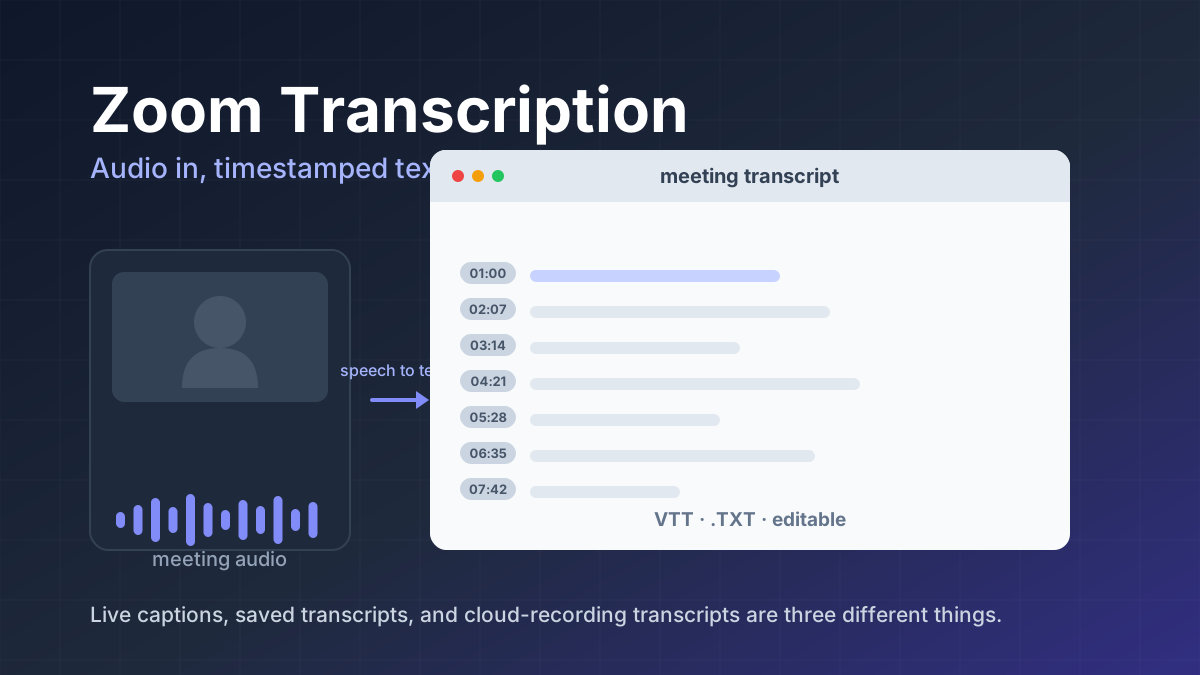
Zoom transcription turns meeting audio into text. Learn the difference between transcripts, captions, and AI summaries, how to enable them, and when to use third-party tools.
Zoom makes three different things out of the same meeting audio, and they are easy to confuse: captions that scroll past while people are talking, a transcript you can save during the call, and an audio transcript that appears later alongside a cloud recording. Add an AI meeting summary on top, and "Zoom transcription" stops being a single feature.
Zoom's own documentation has moved on from the older "live transcription" label. The current term for the live feature is automated captions, and the retained-record features live under account settings called Recording & Transcript. That naming shift matters because the two are configured in different places and produce different files.
| Automated captions | In-meeting transcript | Cloud recording audio transcript | |
|---|---|---|---|
| When it exists | During the meeting | During the meeting | After the recording is processed |
| Where it appears | Captions panel | Full transcript panel | Recording page, beside the video |
| Export | Not the point of the feature | .TXT via Save transcript | .VTT file |
| Needs a recording | No | No | Yes, cloud recording required |
| Editable later | No | No | Yes, text and speaker names |
| Comes with punctuation | No | No | No, until you add it |
Getting Zoom transcription right starts with picking the right one of the three. Each produces a different file, obeys different permissions, and disappears on a different schedule.
The detail that catches people out: a cloud recording audio transcript contains no capitalisation and no punctuation. Zoom's documentation is explicit that you add them by editing the text yourself. If you have seen a tidy, well-punctuated transcript, somebody typed it.
Start a meeting or join one, then in the meeting controls toolbar click the Show captions icon. Captions begin generating immediately.
Three details trip people up:
Admins reach the setting through Account Management → Account Settings → Meeting tab → In Meeting (Advanced) → Automated captions. A pencil icon next to it selects which languages are offered. A lock icon stops users changing the decision.
There is also Automated captions on device, which processes audio locally on eligible devices. It exists for meetings with poor connectivity or low-quality audio, and needs Zoom Workplace desktop app 6.5.3 or later.
Captions are for following along. For the whole conversation, open the full transcript panel.
In the meeting controls toolbar, next to the Show captions icon, click the up arrow. Under Captions and translation, choose View full transcript. The panel shows the session's text so far, with a search bar at the top.
At the bottom of that panel is Save transcript, which downloads a .TXT file of the full transcript. This is the only built-in way to keep the live text, and it only exists while the meeting is running. Close the meeting without clicking it and the text is gone.
To turn captions off for everyone, go back through the up arrow menu to Host controls → Host caption control settings and switch off Allow closed captioning for this meeting.
One conflict to know: if manual captioning is enabled for the session, automated captions cannot be used in the meeting or its breakout rooms.
This is the workflow people usually want when they ask about saving a Zoom transcript, because it is the one that persists.
What it does. Audio transcription processes the audio of a meeting or webinar you record to the cloud. Once processed it appears as a separate VTT file in the list of recorded meetings. You can also show the transcript over the video like closed captions, via the CC icon at the bottom-right of the playback screen; that text is embedded but hidden by default.
Requirements. A Pro, Business, Education, or Enterprise account, cloud recording enabled, and audio transcription enabled. If you meet those and still cannot see the option, Zoom's instruction is to contact Zoom Support.
Turning it on. Admins go to Account Management → Account Settings → Recording & Transcript tab, confirm Cloud recording is on, then tick Create audio transcript under Advanced cloud recording settings and save. A lock icon prevents users changing it, and licensed users find the same checkbox under their own Settings.
Generating it. Start the cloud recording. You get an email when the recording is available, then a second when the audio transcript is ready — which can take extra time after the recording appears.
Finding and editing it. Sign in to the web portal, choose Recordings & Transcripts, open the Cloud recordings tab, click the meeting name, then click the recording thumbnail. A new tab plays the recording with the transcript down the right side, split into sections stamped with how far into the recording each belongs. To correct something, hover the phrase and click the pencil icon, then tick the checkbox to save. If a line is labelled Unknown Speaker, hover that label and click the pencil to name them. Your corrected text shows when the recording plays.
Searching it. Use the Search text in audio transcript field in Recordings & Transcripts, with Advanced search to filter by date range, host, or storage location. Matches highlight in the results, and admins can search every transcript in the account through Account Management.
The account settings screen is where the distinction becomes concrete. Under Advanced cloud recording settings, Create audio transcript and Save closed caption as a VTT file are separate checkboxes that produce separate files from different sources.
Create audio transcript runs speech recognition over the recorded audio. Save closed caption as a VTT file captures the live captions as they were generated, and Zoom describes them as accessible on the cloud recording detail page. They will not be identical, because the live captions were produced under whatever conditions existed in the room while the audio transcript is a fresh pass over the recording.
A third file often gets confused with both: enabling Save chat messages from the meeting / webinar gives you a TXT file containing the chat transcript. That is text people typed, not speech that was spoken.
This is the area where Zoom's documentation contradicts itself, and where articles tend to be vaguest. The lists are genuinely different per feature.
Automated captions support a long list of languages and regional dialects, including Afrikaans, Arabic and Arabic (Gulf), Bengali, Cantonese, Catalan, Chinese in Simplified and Traditional forms, Croatian, Czech, Danish, Dutch, English, Estonian, Finnish, French (Canada) and French (France), Galician, German and German (Switzerland), Greek, Hebrew, Hindi, Hungarian, Indonesian, Italian, Japanese, Korean, Latvian, Malay, Norwegian, Persian, Polish, Portuguese, Romanian, Russian, Serbian, Slovak, Somali, Spanish, Swedish, Tagalog, Tamil, Telugu, Thai, Turkish, Ukrainian, Vietnamese, and Zulu.
Cloud recording audio transcripts document a much shorter list of nineteen: English, Spanish, French, German, Italian, Chinese (Simplified), Russian, Ukrainian, Japanese, Korean, Vietnamese, Dutch, Portuguese, Arabic, Polish, Romanian, Swedish, Turkish, and Danish. English is the default, and you can change it per recording by hovering the audio transcript file, choosing Change Language, picking from the dropdown, and saving. Zoom then reanalyses and transcribes the audio again.
Zoom's own article on enabling audio transcription states that audio transcription only supports English. That directly contradicts the nineteen-language list in the article on using it, and the two pages were last updated in February and August 2026 respectively. Rather than guess, open the language picker on a real recording in your account and see what appears.
AI features have their own separate lists again. Meeting summaries and in-meeting questions support around thirty languages. Smart recording supports seventeen, and Zoom notes that smart recording highlights are currently English only.
An AI meeting summary is a separate output built on top of the transcript, not a transcript. Zoom states plainly that meeting summary uses speech-to-text data to generate the summary of the meeting.
A host enables it during the meeting, and afterwards participants may receive the summary automatically if the host shared it — by email, and in the meeting's dedicated Chat group when that setting is on. It needs a licensed user on Pro, Pro Plus, Business, Business Plus, Enterprise, Enterprise Plus or Enterprise Bundle, Meeting Summary enabled, and a recent desktop or mobile client. Zoom Rooms needs 5.16.0 or later, and Zoom notes that AI features may be unavailable for some industry verticals and regional customers.
Smart recording has a hard dependency worth knowing: it will not run until both the cloud recording and its audio transcript have finished processing. Once it does, you get highlights, smart chapters, next steps, and conversation analytics such as talk speed, talk-listen ratio, longest monologue, filler word usage, and patience. The host, or anyone with permission to manage cloud recordings, can edit highlights, chapters, and next steps. Smart recording settings have moved to the Zoom AI settings tab.
On whether to trust the output, Zoom's guidance is blunt: AI features may provide incorrect, inaccurate, misleading, or offensive responses, and it is important to check AI-generated content for accuracy. There is no accuracy figure published for the transcript itself.
If the summary is your real goal rather than the record, how AI meeting summaries actually work covers where that output comes from and what it is good for.
Zoom does have a path for meetings held elsewhere, and it is not the same one as cloud recording transcription. My Notes captures insights from conversations on Zoom, in person, on mobile, and across third-party platforms. It requires a Pro, Business, or Enterprise account or a My Notes standalone subscription, and admins switch it on via profile picture → Admin Center → Settings → Notes → My Notes → Enable My Notes.
The sub-settings matter here:
Two things to keep straight. Non-Zoom capture routes audio through the device, so it depends on permissions and on whether a host on the other platform will allow recording. And a separate ZoomMate licence plus available AI Credits are needed for the metered agentic features, which is a different thing from transcription.
Zoom publishes no accuracy percentage, and that absence is the honest answer to most accuracy questions. What the documentation does say is specific.
Automated captions. Accuracy depends on many variables, including background noise, the volume and clarity of the speaker's voice, and lexicons and dialects specific to geography or community. On that basis Zoom recommends using a manual captioner or service that may guarantee a specific accuracy if you need speech-to-text for compliance or accessibility. For healthcare, Zoom says automated captions may not be accurate and that UK NHS customers can consult its DCB0129 documentation.
Audio transcripts. Zoom's published best practices are the practical checklist: keep background noise to a minimum, ask participants to speak clearly into the microphone and refrain from shuffling papers or typing loudly, place the microphone near active speakers such as those on a shared dial-in, and choose an external microphone over a built-in one for better sound quality.
The rest of the rough edges. Overlapping speakers make separation hard. Uncommon names, jargon, and acronyms get mangled. Speaker attribution can be wrong, and unknown lines land under Unknown Speaker. Features vary by plan, region, and admin configuration, so a colleague's working setup is not evidence of yours. And retention is not automatic anywhere except the cloud recording route.
I used Zoom's transcription feature during a few meetings to see how useful the transcript was once the meeting was over. What I found most useful was being able to search through the transcript instead of going back and watching the full recording. It made it much easier to find a specific discussion or check what was said at a particular point.
The transcript was generally useful when people spoke clearly, although I did notice a few mistakes with names, technical terms, and some phrases. I had to make a few corrections before using it as a final record. For me, the biggest advantage was having a searchable text version of the meeting that I could quickly review when I needed to find something later.
A transcript is a verbatim record of what people said, which makes it more sensitive than most meeting artefacts.
What Zoom says about AI data. Zoom states that it does not use any customer audio, video, chat, screen sharing, attachments, or other communications-like content, including poll results, whiteboard and reactions, to train Zoom's or third-party AI models. This is a specific published commitment about training data, and it is separate from retention.
Who can see a transcript. Access follows the recording. Admins control a set of independent switches under cloud recording management: whether Viewers can see the transcript for people with a share link, whether Only the host can download cloud recordings, whether the host can delete cloud recordings at all, whether viewers must authenticate or supply a passcode, and whether IP address access control applies. Managing these requires a Pro, Business, or Enterprise account and admin privileges.
Retention. There is no transcript-specific retention setting, and that is the useful detail. A transcript exists as long as its cloud recording does. Deleting cloud recordings after a specified number of days therefore governs transcripts too, and deleted recordings can optionally be recovered from Trash for 30 days, outside your storage allowance. The Viewers-can-see-the-transcript and authentication changes apply only to newly generated recordings.
Your responsibilities. Tell participants transcription is running. Follow your organisation's consent rules and any applicable recording law. Restrict who receives the file, since a transcript is searchable and quotable. Check names and sensitive details before circulating anything. This is general guidance rather than legal advice, and your compliance team should set the actual policy.
Stay with the built-in workflows when meetings happen in Zoom, your plan supports what you need, and the .TXT and .VTT formats are workable outputs. Adding a second service costs money, admin attention, and another place participant data goes.
Look at a third-party tool when at least one of these is true:
Tools such as Otter.ai and Fireflies.ai cover meeting transcription, and Descript is built around editing video and audio from a transcript. We are not ranking them here, because the deciding factors are your platform mix, your retention rules, and your export needs rather than any feature checklist.
Before. Confirm the setting you need is enabled at the right level, and check both who will be able to access the result and when it gets deleted. Tell participants.
During. Set the speaking language and turn on captions early. Click Save transcript before you leave any call whose transcript you intend to keep.
After. For a cloud recording, wait for both emails, then search the transcript for decisions instead of reading it end to end. Fix names, numbers, and dates in the editor. Read the AI summary as a draft.
The habit that matters more than the rest: download what you cannot regenerate, and check the transcript before anyone acts on it.
It is the process of turning speech from a Zoom meeting or webinar into written text. Zoom applies it in several separate ways, and the result differs depending on which one you use: live captions during a meeting, a transcript panel you can save as a text file, or an audio transcript generated for a cloud recording.
Zoom calls the live feature automated captions, and it is built for reading along while people speak. A transcript is the retained written record. Captions scroll past during the meeting; a transcript is something you search, edit, and export afterwards.
For live text, click the Show captions icon in the meeting controls toolbar and captions start generating automatically. An admin must have automated captions enabled first, at account, group, or user level. For a transcript tied to a recording, an admin enables Create audio transcript in the Recording and Transcript settings.
Yes, in two different ways. During a meeting you can open the full transcript panel and use Save transcript to download a .TXT file. For a cloud recording, the audio transcript is provided as a VTT file, which you can open in a text editor or word processor.
It depends which feature you used. An audio transcript for a cloud recording is generated automatically after the recording finishes processing and stays available with that recording. A live transcript shown during a meeting is not kept automatically, so download it before the meeting ends if you need it.
Zoom publishes no accuracy percentage, and its documentation says accuracy depends on background noise, speaker volume and clarity, and regional dialects. It also notes that transcripts carry no capitalisation or punctuation until someone adds them, and recommends a manual captioner when a compliance or accessibility need requires guaranteed accuracy.
The lists differ by feature. Automated captions support roughly fifty languages and regional dialects. Cloud recording audio transcripts document a shorter list of nineteen languages with a Change Language control. Zoom's own articles are not fully consistent here, so check the language picker in your account before relying on a specific one.
No. Cloud recording audio transcription requires a Pro, Business, Education, or Enterprise account with cloud recording enabled, and an account owner or admin has to turn the setting on. Live automated captions are enabled by default on paid accounts but can be switched off, and some accounts do not have the feature at all.
A cloud recording transcript follows the same permissions as the recording itself. Admins can separately control whether people with a share link can see the transcript, whether only the host may download recordings, whether the host may delete them, and whether recordings are deleted after a set number of days.
Consider one when meetings happen across several platforms, when you need a searchable library of past calls, when you want notes pushed into other tools, or when you need export formats and languages your Zoom configuration does not offer. There is no universally better option, only a better fit for a particular workflow.
Zoom documentation, checked 1 October 2026:
Get our best AI tool reviews and guides delivered to your inbox each week. No spam, unsubscribe anytime.

Written by
The AI Tools Vault editorial team researches, tests, and reviews the best AI tools across every category.
More reading on guides & how-to
 Guides & How-To
An AI agent icon can name an agent, mark an AI feature, show live status, or point at a tool. Here is what the common symbols mean, where to find one, and what to check before you ship it.
 AI Tools Vault Team
 Guides & How-To
I used several AI budget tools on ordinary budgeting jobs. Here is what saved time, what got filed in the wrong category, how much of the "AI" is really automation, and how to check a tool before you connect a bank.
Jawad Fiaz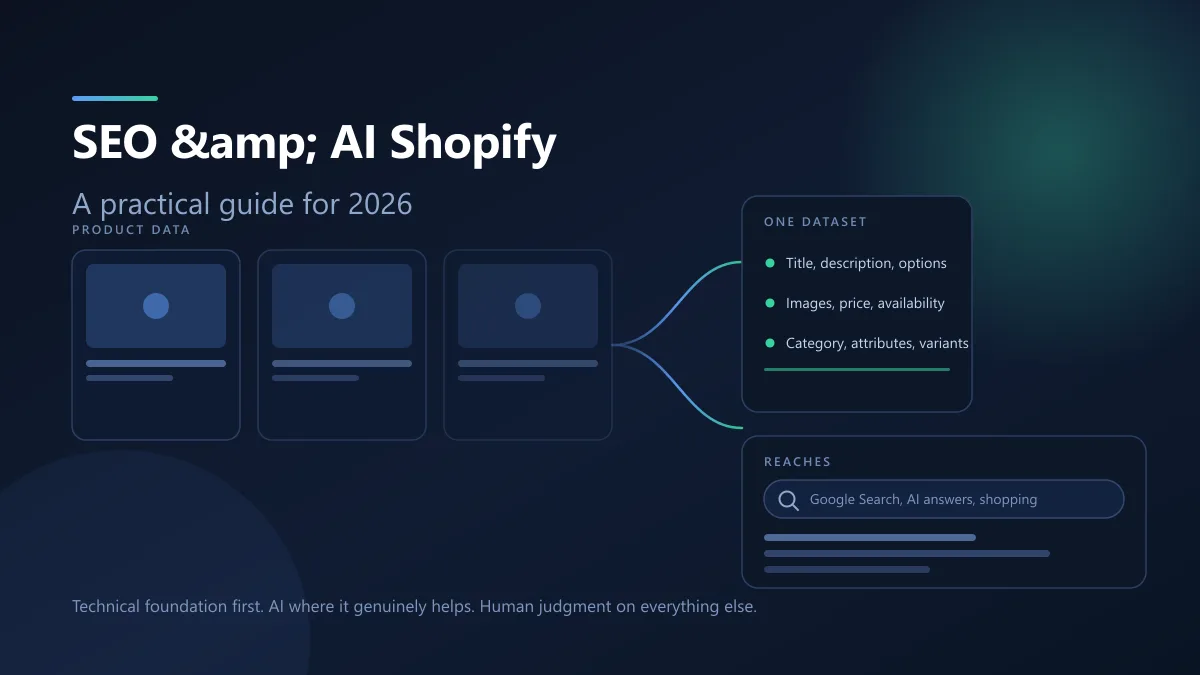 Guides & How-To
AI channels read the same product fields Google already crawls, so Shopify SEO and AI search are one job rather than two. Here is what the platform handles, what you still own, and where AI genuinely helps.
Jawad Fiaz