AI Video Upscaling Tools: Costs, Quality & Hardware
How AI video upscaling tools differ by source footage, hardware and price — plus free and open-source options and how to judge the result.

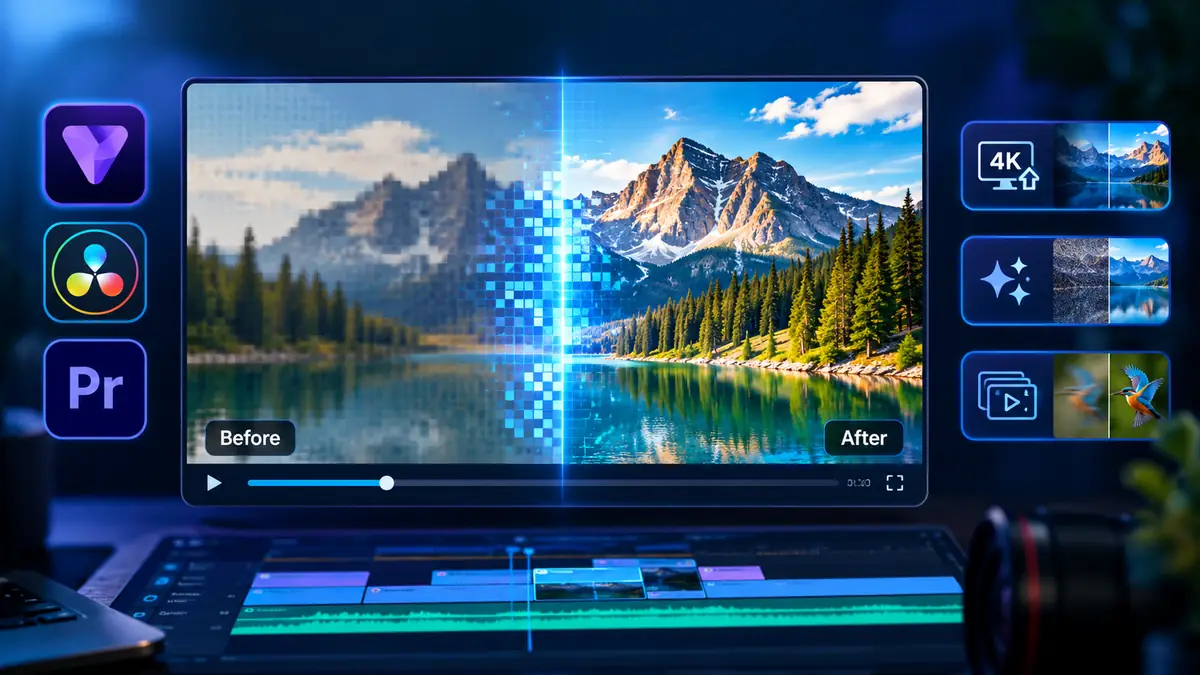

How AI video upscaling tools differ by source footage, hardware and price — plus free and open-source options and how to judge the result.
Two clips can leave the same upscaler looking like a triumph or a mess. That is because "AI video upscaling" is not one operation. It is a family of models that enlarge a frame and then guess the detail that should fill the new pixels — and how well that works depends far more on the source footage, the model chosen and the hardware than on the brand name on the box.
This guide explains what AI video upscaling tools actually do, how to pick one for your footage, what hardware the work really needs, and where the free and open-source options fit. It compares dedicated upscalers such as Topaz Labs, upscaling built into editors such as DaVinci Resolve, Adobe Premiere Pro and Clipchamp, and the open-source route.
This is a documentation-based comparison, not a hands-on test. Every product capability and price below was checked against the vendor's own website, documentation or pricing page on 16 October 2026. Where a claim could not be confirmed from a primary source, it is labelled that way. Prices in this category move quickly, are usually quoted in US dollars before tax, and can vary by region, so confirm any figure before you buy.
An upscaler does two things at once, and it helps to keep them separate.
The first is enlargement. A frame is scaled up with an interpolation method such as Lanczos or bicubic. You can do this today with a free tool like FFmpeg, and the result is a bigger file with soft edges.
The second is estimation. A trained model looks at the enlarged frame, and often at neighbouring frames, and predicts detail that is plausible for that content — sharper edges, cleaner texture, less blockiness from compression. This is where the quality difference between tools lives.
The important limitation follows from that word "plausible". The model is not recovering the original scene. It is drawing a convincing version of what the scene probably looked like. Two consequences matter in practice:
That is why "upscaling" and "sharpening" are not the same task. Sharpening increases contrast at existing edges. Upscaling adds pixels and estimates their contents. Many editing tools ship strong sharpening; very few ship a genuine super-resolution model.
It also explains the single biggest quality gap between tools: temporal consistency. An upscaler that treats each frame as an independent photo has no idea what the previous frame looked like, so the detail it invents can change frame to frame and the result shimmers. Frame-by-frame image upscalers are the usual cause of this. Models built for video, rather than for stills, keep invented detail stable over time.
Readers often ask which upscaler is "best", but the honest answer is that the right choice changes with the footage. A few common cases:
The pattern is consistent: the more the source has lost, the more the result depends on a model trained for that specific problem, and the more carefully you should check the output.
Upscaling runs either on your own machine or on someone else's servers, and that choice affects privacy, cost and speed.
Local processing keeps your footage on your device. It has no upload wait, no per-minute fee and no dependency on your internet connection, but it is limited by your GPU and the render can run for a long time. Topaz Video, Video2X, Real-ESRGAN and the desktop tools in the next section are all local.
Cloud processing removes the hardware requirement and can be faster on capable servers, but your footage is uploaded and processed on a third party's infrastructure. That raises questions about retention and who can access the material. Hosted services such as Pixop and the browser tools live here. If footage is confidential, sensitive or under a client contract, that distinction should decide the tool before quality does.
Some products offer both. Topaz, for example, renders locally by default and also sells cloud credits. The rule of thumb: cloud is convenient for one-off jobs and weak hardware; local is preferable for regular work, private footage and large volumes.
The single most common mistake is assuming one set of hardware requirements applies to every tool. They do not. A classical upscaler that runs on an old Vulkan GPU may be ten times lighter than a diffusion model that needs a recent, high-VRAM card.
The factors that decide how long a job takes, and whether it runs at all:
The table below records what the vendors actually publish. Blank cells are not guesses — they mean the vendor does not publish that figure.
| Tool / workflow | Local or cloud | Published hardware requirement | Platforms | Source |
|---|---|---|---|---|
| Topaz Video (Windows) | Local | Windows 11, 32 GB RAM, NVIDIA RTX 30-series+ / AMD Radeon 5000-series+ / Intel Arc A770+, 8 GB VRAM, 60 GB storage; heaviest models need more | Windows | Topaz docs |
| Topaz Video (Mac) | Local | macOS 13+, M-series, 16 GB RAM, 45 GB storage; Starlight models need 36 GB RAM | Apple Silicon Mac | Topaz docs |
| Video2X | Local | AVX2 CPU (Intel Haswell / AMD Excavator or newer) and any Vulkan GPU (NVIDIA Kepler / AMD GCN 1.0 / Intel HD 4000 or newer); no VRAM figure published | Windows, Linux, container (macOS) | Video2X repo |
| Real-ESRGAN | Local | Portable Vulkan build works on Intel, AMD and NVIDIA GPUs; no VRAM figure published | Windows, Linux, macOS | Real-ESRGAN repo |
| SeedVR2 | Local (or rented) | Reference setup is an H100-class GPU; consumer use relies on quantised community builds | Linux | SeedVR2 repo |
| DaVinci Resolve Studio | Local | GPU-accelerated; Blackmagic publishes recommended system configs | Windows, macOS, Linux | Blackmagic |
| Clipchamp | Local (on-device) | Depends on Windows video upscaling being supported and enabled on the device; no numeric spec published | Windows desktop app | Microsoft |
| NVIDIA RTX Video Super Resolution | Local playback | GeForce RTX GPU with Tensor Cores (RTX 20-series or newer) | Windows | NVIDIA |
A practical point hides in that table: the vendor's "minimum" is not a promise of usable speed. Topaz's own documentation notes that its Starlight models exceed the app's recommended specifications, and that integrated graphics rarely run at a usable pace. If performance matters, aim above the minimum.
Topaz Labs is the reference name in this category, and also the one most often described out of date. Two corrections matter.
First, the product name. The older Topaz Video AI has been discontinued; its final version was 7.1.5, and the current application is Topaz Video, sold separately. Advice written around the old product — including one-time licensing — no longer applies.
Second, the pricing model. Topaz no longer sells perpetual licences. At the time of checking, the official pricing page listed Topaz Video at 59 US dollars a month, or 299 US dollars a year on an annual commitment, and Topaz Studio — every Topaz app in one plan — at 399 US dollars a year. Limited-time discounts are common, so the list price and the checkout price often differ.
Topaz Video renders locally, which means footage stays on your machine, and it ships the broadest model roster in the category. The current lineup includes Starlight Precise and Starlight Mini, Proteus, Iris, Nyx, Rhea and Rhea XL, Artemis, Gaia, Theia, Apollo, Chronos, Aion, Themis, plus SDR-to-HDR and Stabilization. The models are not interchangeable: generally, Proteus is a flexible everyday enhancer, Iris targets detail on softer footage, Gaia suits cleaner sources and animation, Nyx is denoise-focused, and the Starlight family is the newest, most compute-hungry group. Check the current model guide for your exact source rather than assuming any one model wins.
The trade-offs are real:
Independent reviews and community comparisons consistently place Topaz's top models near the front on quality — but as with every vendor claim here, treat that as opinion unless you test with your own footage.
If Topaz's subscription or hardware demands do not fit, several paid desktop tools perform genuine video super-resolution and restoration. Prices are US list prices from the vendors' own pages on 16 October 2026 and are frequently discounted.
Two patterns are worth noting before comparing these on price alone. Many "unlimited" licences still meter their generative features by credits, and a perpetual licence frequently covers a single computer. Read the terms, not just the headline price.
If you already edit, an upgrade you own may already include upscaling.
DaVinci Resolve Studio includes Super Scale. Blackmagic describes its AI Neural Engine — which powers Super Scale among other features — as exclusive to the paid Studio version, priced as a one-time purchase, and it advertises Super Scale as creating "4K and 8K images from HD sources". The free edition is a complete editor but does not include Super Scale, and using it there adds a watermark. For editors who already own Studio, this is the cheapest route to a solid upscale because it sits inside the timeline with no round trip to another app.
Clipchamp, Microsoft's editor, added a genuine upscale feature in its Windows desktop app. Microsoft documents it as "AI-powered video super resolution" that runs on your device, and states plainly that it "can't restore details that weren't captured in the original video". Two caveats: it is a Windows desktop app, not the browser editor, and availability depends on Windows video upscaling being supported on the device. Free exports are capped at 1080p; 4K export needs a paid Microsoft plan.
Adobe Premiere Pro is often listed as an upscaler, but Adobe's documentation does not describe a built-in AI video upscaler. Its scaling options are interpolation-based, and machine-learning upscaling in Premiere comes from third-party plugins rather than the application itself. A frequent mix-up: Adobe's "Enhance Speech" improves audio, not picture, and should not be mistaken for video upscaling. Premiere is sold as a Creative Cloud subscription, with pricing that varies by plan and region — check Adobe's own page for current figures.
The free options are genuinely capable, but they are not all easy, and they are not interchangeable. Three projects cover most of the ground, plus one non-AI baseline.
Video2X is a free, open-source framework under the AGPL-3.0 licence. Version 6.x is a C/C++ rewrite with a Windows installer, Linux packages and a container image for macOS, and it wraps established models including Real-ESRGAN, Real-CUGAN, waifu2x, RIFE for frame interpolation, and Anime4K. Its published requirements are modest — an AVX2 CPU and any Vulkan GPU from around 2012 onward — which makes it one of the few options that runs on older or integrated hardware. It is especially strong for animation.
Real-ESRGAN is the model and code that does the actual restoration, released under the permissive BSD-3-Clause licence. It runs through Python or as portable Vulkan executables, and its general and anime-specific models are widely reused inside other tools. The important caveat for video: Real-ESRGAN processes frames essentially as stills, so it has no built-in temporal consistency, which is why results can shimmer and why it is usually run through a video wrapper that manages the pipeline.
SeedVR2 is a newer, one-step diffusion transformer from ByteDance Seed, published under the Apache-2.0 licence with 3B and 7B checkpoints on its official repository and native support in ComfyUI. It is a video restoration model first, which makes it strong on degraded sources, and the permissive licence allows commercial use. The catch is hardware: the reference configuration assumes a datacentre-class GPU, and most people run it through quantised community builds or rent capacity by the hour.
FFmpeg is not an AI upscaler, but it is the right control. Its scaling filters enlarge a frame without inventing detail. Running the same clip through FFmpeg and through an AI model side by side is the clearest way to see how much of an improvement is real and how much is the model's imagination.
Licensing matters if the output is commercial. AGPL-3.0, BSD-3-Clause and Apache-2.0 carry different obligations, and a permissive wrapper around differently licensed model weights does not make the weights permissive. Check the licence before you ship.
A category confusion worth clearing up: NVIDIA RTX Video Super Resolution is not a file upscaler. It enhances video as it plays — in supported browsers and media players — on GeForce RTX GPUs that have Tensor Cores. It makes streamed or local playback sharper in real time, and NVIDIA has extended it to de-artefact some video at its native resolution.
What it does not do is render or export a new, permanently upscaled video file. If your goal is a deliverable you can upload, send or archive, RTX Video Super Resolution is not the tool. It is a viewing improvement, not a production one. Products that enhance video during playback and products that output an upscaled file are solving different problems, and reviews often blur them together.
Renting processing avoids the hardware problem entirely. Pixop is the clearest example: it is a managed cloud service aimed at broadcasters and archives, and it bills by the volume of video processed rather than by a monthly seat, with published per-unit rates on its pricing page and volume discounts for large jobs. That model suits organisations remastering libraries, where paying for exactly what you process is simpler than buying and maintaining GPUs.
Per-use billing has a predictability trade-off. A subscription costs the same whether you use it or not; a metered service is cheap in a quiet month and expensive in a heavy one. Estimate your real volume before choosing, and remember that most cloud services require you to upload the footage.
Setting honest expectations is part of using these tools well.
The practical rule is to judge an upscale on movement and on the hardest frames in the clip, not on the frame that happens to look best.
You do not need a laboratory to choose well. A short, consistent method gets you most of the way:
For a fair comparison, keep the source, the target resolution and the settings consistent; comparing different clips and calling it a test proves nothing. And label your own notes as qualitative impressions, not measurements, unless you measured them.
Figures below are US list prices taken from vendors' own pages on 16 October 2026, before tax, and are frequently discounted. Confirm them before buying.
| Tool | Model | Entry price (checked 16 Oct 2026) | Free / trial | Commercial use |
|---|---|---|---|---|
| Topaz Video | Local desktop | 59 USD/mo or 299 USD/yr | No desktop trial; 2-day money-back | Limited below a revenue threshold |
| Topaz Studio | Local desktop bundle | 399 USD/yr | Same refund policy | Limited below a revenue threshold |
| DaVinci Resolve Studio | Local editor | 295 USD one-time | Free edition, no Super Scale | Full |
| Clipchamp | Local (Windows app) | Free; 4K export needs a paid Microsoft plan | Yes, no watermark, 1080p export | Per Microsoft terms |
| HitPaw VikPea | Local desktop | 43.19 USD/mo, 99.99 USD/yr, 350.39 USD perpetual | Preview only, no export | Paid licence required |
| AVCLabs Video Enhancer AI | Local desktop | 39.95 USD/mo, 95.96 USD/yr, 149.90 USD perpetual | 30-second watermarked export | Paid licence required |
| Aiarty Video Enhancer | Local desktop | 79 USD/yr or 165 USD lifetime (3 machines) | 120-second watermarked export | Included |
| Video2X | Local, open source | Free (AGPL-3.0) | Free | Yes, with licence obligations |
| Real-ESRGAN | Local, open source | Free (BSD-3-Clause) | Free | Yes |
| SeedVR2 | Local or rented | Free weights (Apache-2.0); compute extra | Free | Yes |
| NVIDIA RTX Video Super Resolution | Local playback | Free with RTX hardware | Free | Playback only |
"Included" commercial use, "limited" commercial use and open-source licences are different things. If the output matters commercially, read the licence and the terms rather than assuming.
What does AI video upscaling actually do? It increases the pixel resolution of a video and uses a trained model to guess plausible detail for the new pixels. On real footage it mostly reconstructs textures and edges that the compression or the lens softened. It does not recover information the camera never captured, so a 720p source becomes a sharper 4K file, not a true 4K capture.
Can AI turn 720p footage into true 4K detail? No. Upscaling enlarges the image and adds estimated detail, so the result usually looks cleaner and sharper on a large screen, but it cannot recreate real resolution that was never recorded. Treat the output as an improved 720p source enlarged to 4K, not as native 4K.
What hardware affects AI video upscaling performance? The GPU and its VRAM matter most, because the model runs in graphics memory. Input and output resolution, clip length, frame rate, the chosen model and settings such as denoise or interpolation also change render time. Topaz Video, for example, lists Windows 11, 32 GB of RAM, an NVIDIA RTX 30-series or higher GPU and 8 GB of VRAM as its Windows requirements.
Does DaVinci Resolve Free include Super Scale? No. Super Scale is part of the DaVinci AI Neural Engine, which Blackmagic describes as exclusive to DaVinci Resolve Studio, a one-time purchase. The free edition is a full editor but does not include Super Scale, and using it there adds a watermark.
Is there a free AI video upscaler? Yes, but they are different kinds of free. Video2X and Real-ESRGAN are free and open source and run on your own hardware. Microsoft Clipchamp includes an on-device AI upscale feature in its Windows desktop app at no cost. Trials from paid tools usually add a watermark or an export limit, so check the terms before relying on them.
What is the difference between Video2X and Real-ESRGAN? Real-ESRGAN is the model and code that does image and video restoration. Video2X is a separate framework that wraps Real-ESRGAN and other models such as Real-CUGAN and Anime4K with a desktop interface and handles the video pipeline. You can run Real-ESRGAN directly, or use Video2X to apply it to a whole clip.
Does NVIDIA RTX Video Super Resolution export an upscaled file? No. RTX Video Super Resolution enhances video as it plays in supported browsers and media players on RTX GPUs. It improves what you see on screen in real time, but it does not render or export a new upscaled video file. For an exported file you need editing or upscaling software.
Is Topaz Video a subscription or a one-time purchase? It is a subscription. Topaz no longer sells perpetual licences. Topaz Video is listed at 59 US dollars a month, or 299 US dollars a year with an annual commitment, and Topaz Studio, which bundles every Topaz app, is 399 US dollars a year. Prices and discounts change, so confirm them on the official pricing page.
There is no single best AI video upscaler, because the right tool depends on your footage, your hardware and how you handle your files. Start with the source: heavily degraded material needs restoration, clean 720p needs only modest enlargement, and AI-generated clips are their own case. Then choose the route that fits — a dedicated local app for regular, private work; an editor you already own for occasional jobs; an open-source framework for free, offline volume; or a metered cloud service for one-off or archival work.
Whichever you choose, verify three things before committing money: the current price and licence on the vendor's own page, what the free or trial version actually exports, and how the output holds up in motion on your own footage. That check matters more than any ranking. For the editing side, see our guide to the best AI video editors, or browse the full AI tools directory to compare more video tools before you buy.
Get our best AI tool reviews and guides delivered to your inbox each week. No spam, unsubscribe anytime.

Written by
Jawad runs AI Tools Vault, where he researches and documents AI software across every category, with a focus on verified pricing and honest limitations.
More reading on guides & how-to
 Guides & How-To
We break down Higgsfield AI's features, pricing, free access and best alternatives, so you can decide if the subscription is worth it for your videos.
 Jawad Fiaz
 Guides & How-To
The free AI background removal tools still worth using after remove.bg closes in December 2026 — Photoroom, Adobe Firefly, Canva, Clipdrop and rembg, with free-tier limits checked in October 2026.
Jawad Fiaz Guides & How-To
Six free AI photo enhancers, six different deals. What each free tier really allows, what AI cannot recover, and how to check a result before trusting it.
Jawad Fiaz